
1
Install the file
Copy SpikeX.ex5 into the MQL5\Experts folder.
- 1. In MT5 click File → Open Data Folder.
- 2. Open MQL5, then Experts.
- 3. Paste SpikeX.ex5 there.
- 4. Restart MetaTrader 5 (or right-click Expert Advisors in Navigator → Refresh).
Follow these on your PC with MetaTrader 5 open. Tick each step as you go — your progress is saved on this phone.
Copy SpikeX.ex5 into the MQL5\Experts folder.
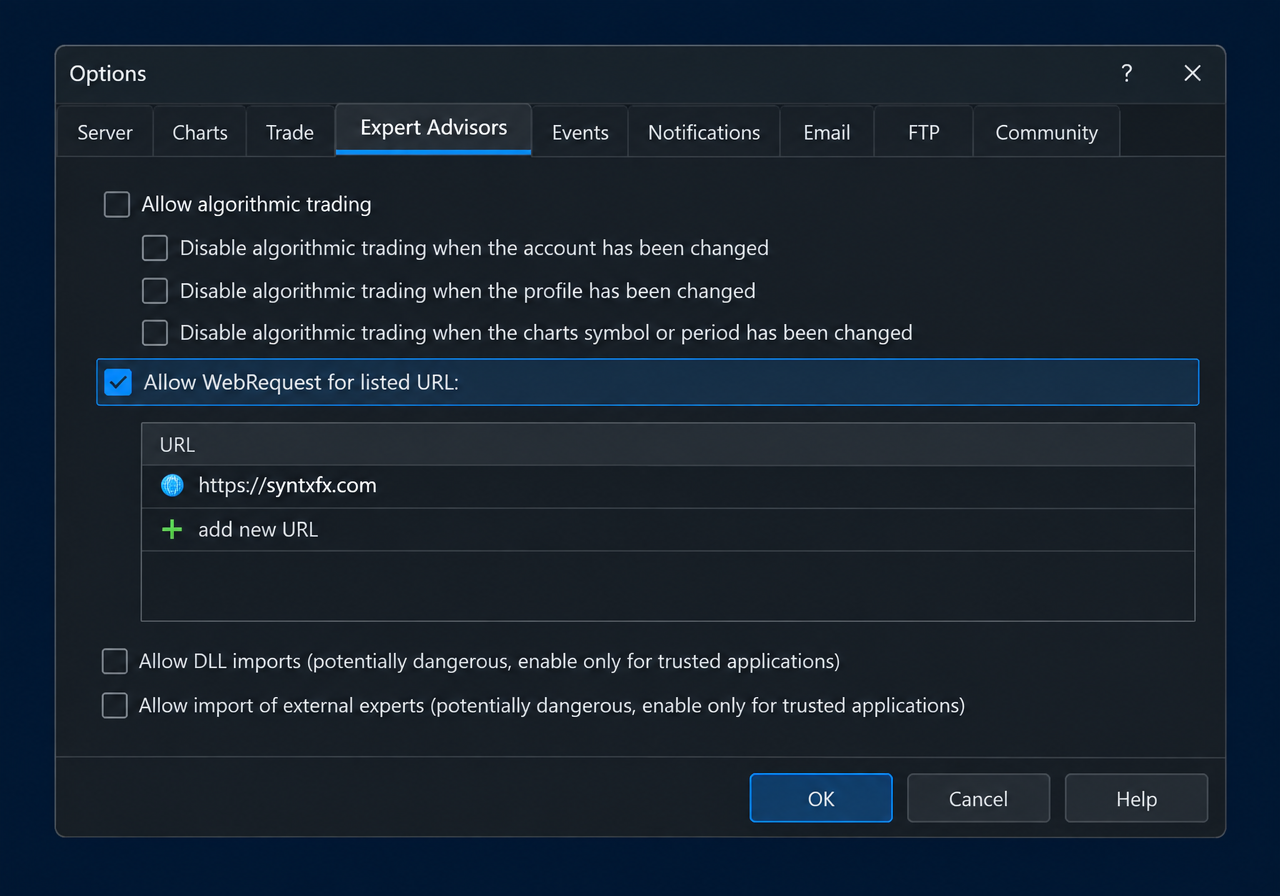
In MetaTrader 5 go to Tools → Options → Expert Advisors, tick “Allow WebRequest for listed URL”, click Add and enter exactly:
https://syntxfx.com
Type it exactly as shown — no www, nothing after .com. https://www.syntxfx.com will NOT work.
Click OK. This lets SpikeX confirm your SyntxFX membership. SpikeX never trades on your account and needs no other permission — AutoTrading can stay off.
Open a GainX, PainX, FlipX or FX Vol chart.
Note: MT5 runs one Expert Advisor per chart — open a separate chart for SpikeX if another EA is running.
Open Toolbox → Experts in MT5 and look for one of these lines.
SpikeX | licence active for <your number>
All good.
SpikeX | licence request failed: add https://syntxfx.com under Tools > Options …
Step 2 was skipped or typed with www — redo Step 2, then remove and re-add SpikeX to the chart.
SpikeX | licence suspended — or the chart says “service suspended”
Your MT5 number is not on the SyntxFX member list yet — contact support with your MT5 number.